












How can we help?
Record a purchase invoice
Record every bill you receive from a supplier as a purchase invoice. Your stock goes up, the GST you paid is counted as input tax credit, and you can track what you still owe.
Where to find it: Purchase Invoice ▾ → Create Purchase Invoice, or + Create → Purchase Invoice (keyboard Alt + Shift + P)
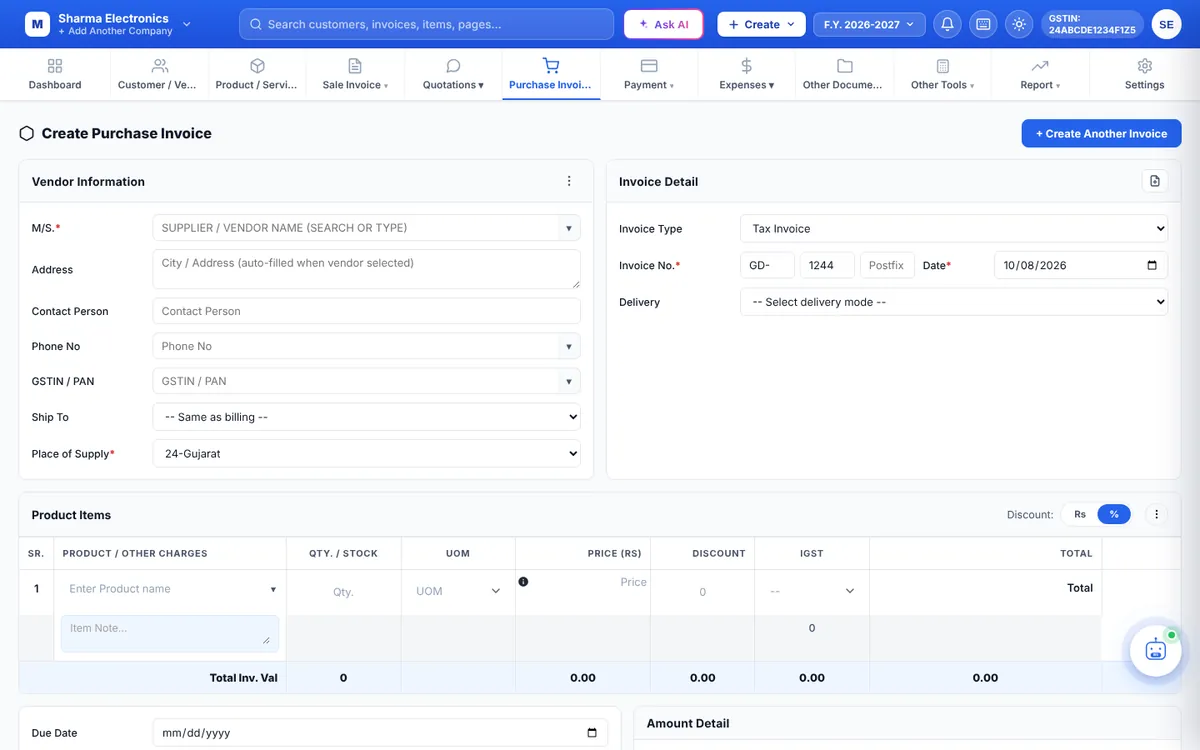
Steps
- Vendor: in M/S. pick the supplier (or search by phone or GSTIN). A new supplier can be typed in and is saved with the bill.
- Place of Supply: usually the supplier’s state for goods delivered to you from another state, or your own state for local purchases. It decides CGST + SGST or IGST.
- Invoice Detail: choose the Invoice Type (Tax Invoice, Bill of Supply, Reverse Charge Invoice or Import Invoice), then enter the supplier’s bill number exactly as printed on their bill, and the bill Date.
- Items: add each product with the quantity received and the purchase price. Prices fill in from the product’s purchase price.
- IMEI / serial and batches: for serial-tracked products type each new IMEI/serial number in the box under the product name and press Enter; for batch products enter the batch. These numbers become available for sale. IMEI tracking · Batches
- Check the totals in Amount Detail against the supplier’s bill (taxable value, GST, round off and grand total).
- Payment: choose CREDIT if you will pay later, or CASH / CHEQUE / ONLINE and enter the Payment Made (or tick Mark as fully paid). If you paid more than the bill, choose whether to keep the extra as an advance or to treat it as returned.
- Click Save or Save & Print.
What happens when you save
- Stock of each product goes up by the quantity received.
- The GST on the bill appears as input tax in the GST Report and GSTR-3B.
- Unpaid bills show in Purchase Outstanding.
Tip: Enter the supplier’s GSTIN and bill number exactly as on their invoice. That is how your purchases are matched with the supplier’s filing in GSTR-2B reconciliation.