












How can we help?
Add a product
Add each item you sell or buy once. After that, picking it on a bill fills in the HSN code, unit, price and GST rate automatically, and Billing Saathi keeps its stock up to date.
Where to find it: Product / Service ▾ → Product / Service → + Add New (or + Create → New Product / Service)
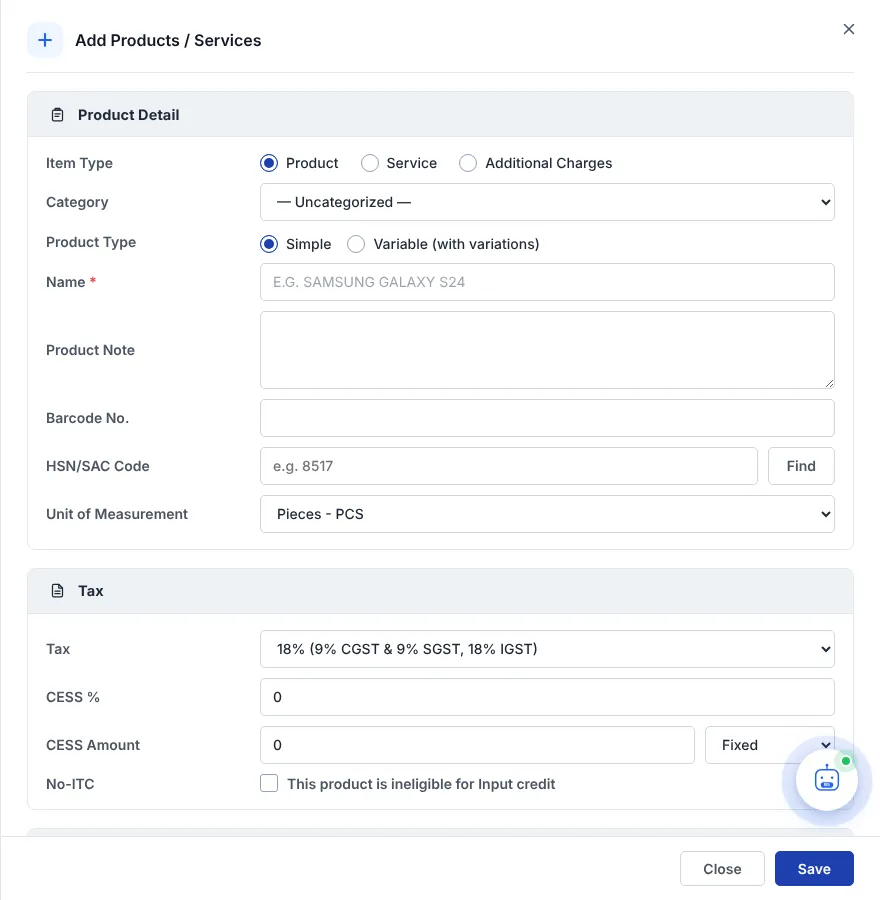
Steps
- Click + Add New. Keep Item Type as Product.
- Type the Name, for example Samsung Galaxy A55 5G 8/128GB. Names are saved in capital letters.
- Enter the HSN/SAC Code. Not sure? Click Find and search the list by code or by name (for example “mobile”).
- Choose the Unit of Measurement (Pieces – PCS, Kilograms – KGS, Boxes – BOX…) and the Tax (GST rate).
- Under Pricing enter the Sell Price and Purchase Price. You can type the price before tax or the price including tax — the other box is worked out for you.
- Under Manage Stock enter the Available Qty you have now and a Low Stock Alert level.
- Optionally choose a Category and Product Group, add a Barcode No., a Product Note and up to 6 product images.
- Click Save.
Field guide
| Item Type | Product (stock is tracked), Service (no stock) or Additional Charges such as freight or packing. Services and additional charges |
| Product Type | Simple, or Variable (with variations) for items in several sizes or colours. Variations |
| Barcode No. | The number printed on the product’s barcode. Products need a barcode number to appear in barcode label printing. |
| Tax, CESS, No-ITC | GST rate, any CESS (percentage, or a fixed / per-unit amount) and whether input tax credit is not allowed on this item. HSN, GST, CESS and units |
| Sale / Purchase Discount | A default discount in rupees or percent that is used on bills for this item. |
| Manage Stock → Type | Normal, Batch (each lot has its own number and price) or Serial No. (each piece has an IMEI/serial number). IMEI / serial · Batches |
| Low Stock Alert | When stock falls to this level the item shows in the dashboard’s Low Stock card. |
| Manufacturing | Tick I Manufacture this product for items you make from raw materials. Manufacture |
| Non-Sellable Product | Turns off selling and stock tracking for this item (for example items for internal use). |
| Enable | When ticked, the product appears on all documents. Untick to hide it without deleting it. |
Add a product while billing
On an invoice, type a new product name in the item box and choose the Custom item option at the bottom of the list. When you save the bill, the product is added to your catalogue automatically. You can also use ⋮ → Add Product / Services on the Product Items card.
Tip: Have a long product list? Import products from a file instead of adding them one by one.