












Find and manage sale invoices
All your bills are listed in All Sale Invoices, newest first, with their payment status and the amount still outstanding.
Where to find it: Sale Invoice ▾ → All Sale Invoices (keyboard Alt + I)
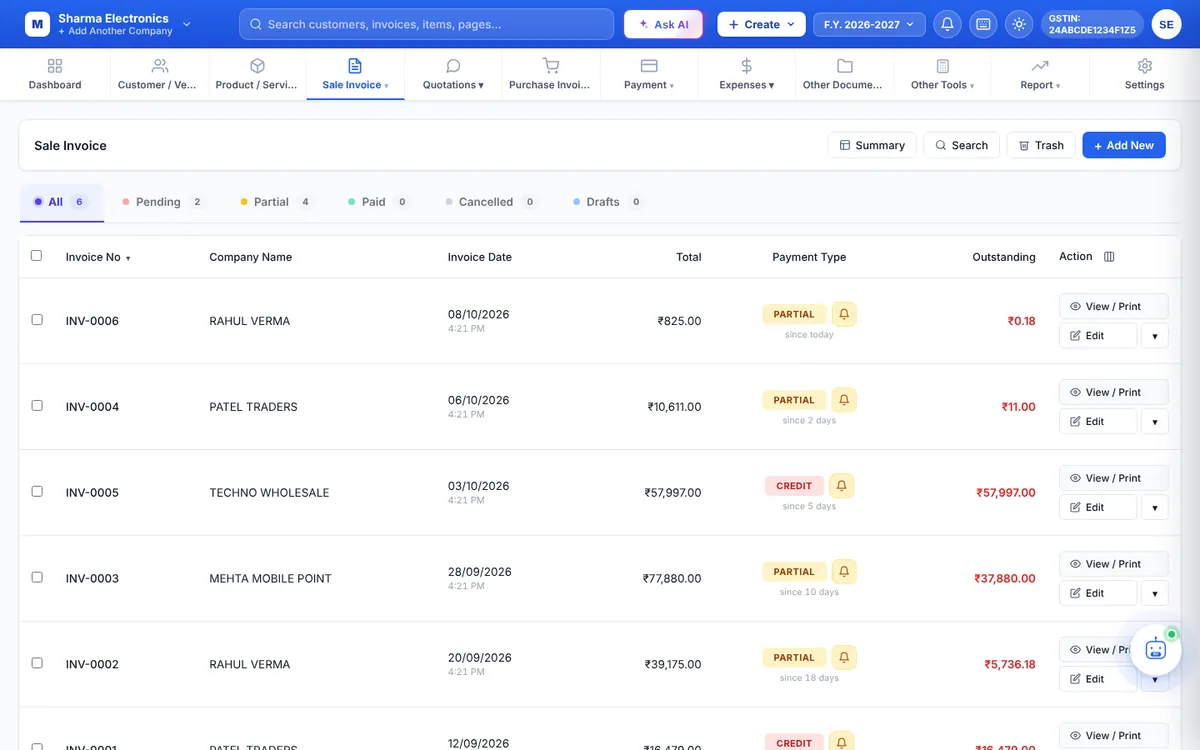
Status tabs
All, Pending (nothing paid yet), Partial (part paid), Paid, Cancelled and Drafts, each with a count.
Columns
- Invoice No (click the arrow to sort), Company Name, Invoice Date with the time it was created, and Total.
- Payment Type: CASH, CREDIT, PARTIAL… with how long the bill has been pending. Click the badge to record a payment. The bell next to it sends a reminder.
- Outstanding: the amount still to be received, in red.
- Use the column icon next to Action to show or hide columns.
Search and filter
Click Search. Type in the big search box to find by customer, invoice number, mobile number, item name or IMEI, or use the filters:
- Company, Product, Product Group, From Date / To Date, Staff Name, Invoice No, Total
- Payment Type (Cash, Credit, Cheque, Online), L.R. No., Challan No., Item Note, Remarks, GSTIN, Shipping Address
- Due Days: less than 30, 30–60, 60–90, more than 90 days, not yet due, or overdue (any)
- E-Invoice and E-Way Bill (generated or not), Invoice Type and Serial No
Advance Filter adds your own conditions (for example Total greater than 50000). Show All clears everything.
Summary
Summary shows the totals of the invoices currently in the list.
Row actions
- View / Print: preview, print and share. View, print and share
- Edit: change the invoice. Edit, cancel, delete
- ▾: Download PDF, Cancel Invoice, Delete Invoice and e-way bill options.
Bulk actions
Tick several invoices and click Delete Selected to move them to the Trash. Trash shows deleted invoices so you can restore them.
Missing an invoice? Check the F.Y. year selector in the top bar and the status tab you are on. Switch financial year