












How can we help?
Find your way around: tabs, Create menu and search
Everything in Billing Saathi is reached from the top bar and the row of section tabs below it.

The top bar (left to right)
| Company name | Shows the business you are working in. Click it to switch to another company, or click + Add Another Company. Manage multiple companies |
| Search | Search customers, invoices, items and even pages. Start typing and pick a result. |
| Ask AI | Ask a question in plain words and get an answer or a shortcut. Ask AI and Billing Saathi Chat |
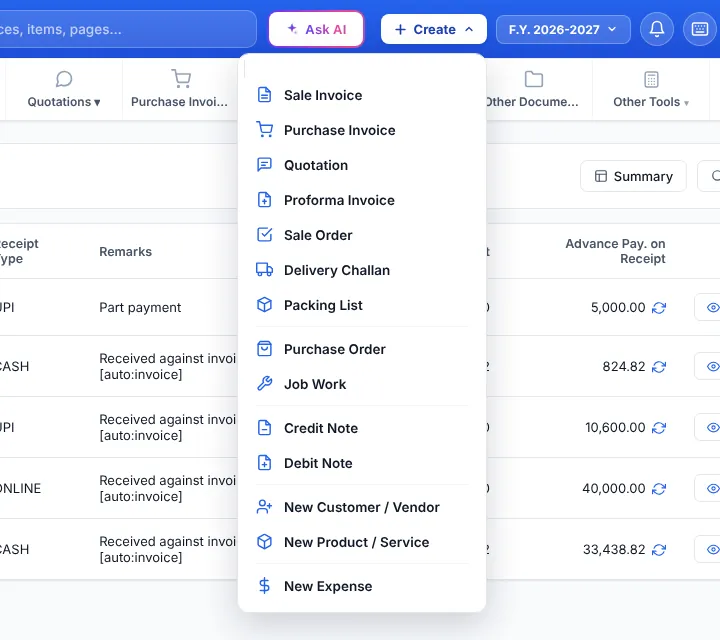
| + Create | Start a new document in one click: Sale Invoice, Purchase Invoice, Quotation, Proforma Invoice, Sale Order, Delivery Challan, Packing List, Purchase Order, Job Work, Credit Note, Debit Note, New Customer / Vendor, New Product / Service, New Expense or Record Payment. |
| F.Y. 2026-2027 | The financial year being shown. Switch financial year |
| Bell | Notifications. Notifications |
| Keyboard | Keyboard shortcuts on/off and the list of keys. Keyboard shortcuts |
| Sun / moon | Switch between light and dark mode. |
| GSTIN | Your GSTIN. Click it to open Business Profile & Details. |
| Your initials | Account menu: your plan, Business Settings, quick links (Business Profile, Bank & UPI Details, Email & Password, Product & Stock Options), Quick Support and Log Out. |
The section tabs
Tabs with a small arrow (▾) open a menu. For example, hover over or click Sale Invoice ▾ to see Create Sale Invoice, Sale Order, All Sale Invoices, Sale Outstanding, Sale Product Report and Credit Note. Clicking the tab name itself opens its main page.
You can hide tabs you never use in Settings → Select Tab. Dashboard and Settings are always shown.
Lists work the same everywhere
Most list pages (invoices, customers, products, quotations…) share the same buttons:
- Search opens a search panel with filters such as company, product, dates, staff and invoice number. Advance Filter lets you add your own conditions (contains, equals, starts with, greater than…).
- Summary shows totals for what is in the list.
- Trash shows deleted records so you can restore them.
- + Add New creates a new record.
- The column icon next to Action lets you choose which columns are visible.
- Tick the boxes on the left to select several rows and delete them together.