












How can we help?
Quick start: create your first GST invoice
This quick guide takes you through a simple cash sale. For every option on the invoice screen, see Create a sale invoice.
Where to find it: + Create → Sale Invoice, or Sale Invoice ▾ → Create Sale Invoice
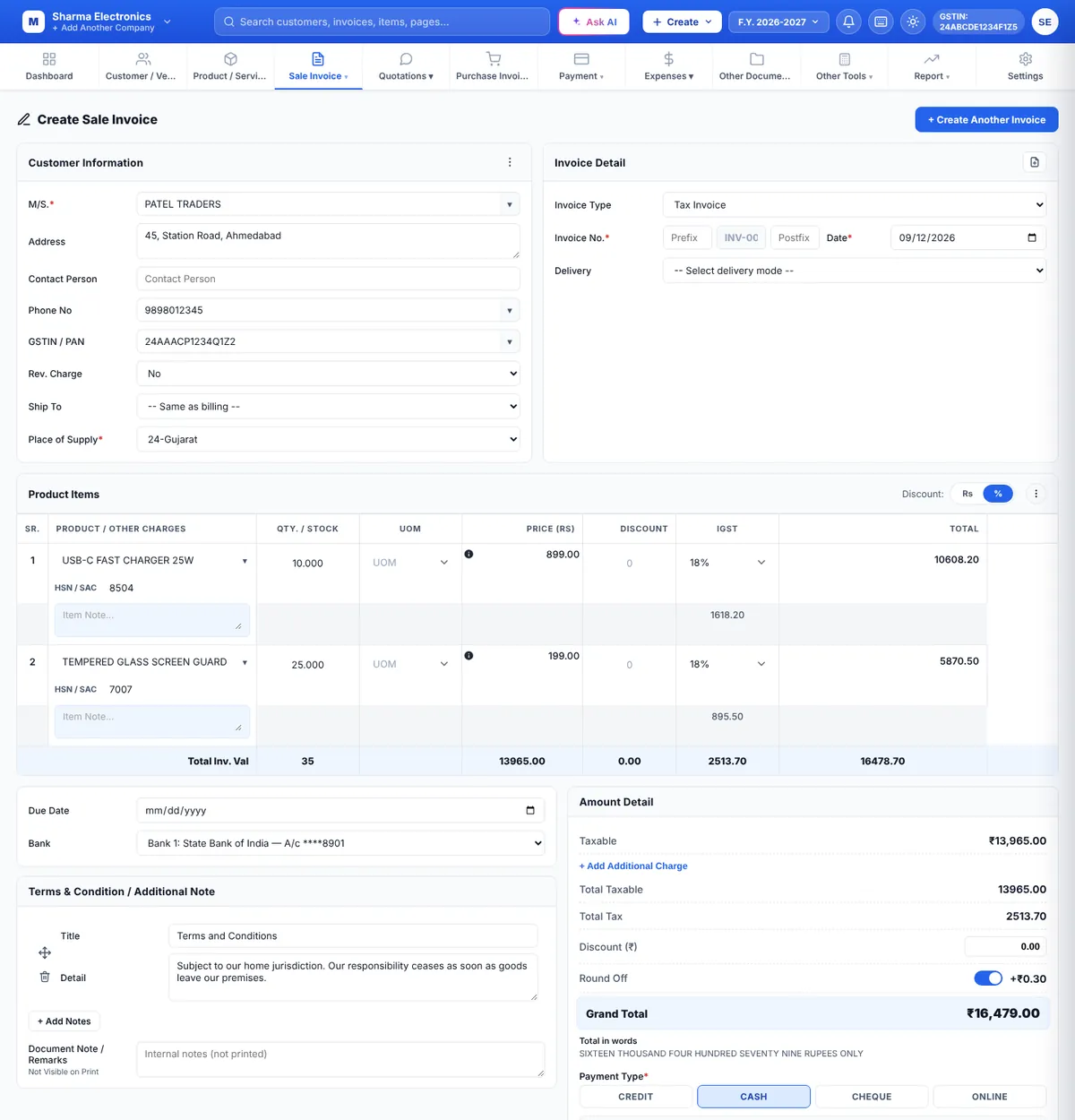
- Open a new invoice. Click + Create at the top and choose Sale Invoice.
- Choose the customer. In M/S. start typing the customer’s name and pick it from the list. For a new customer just type the name — you can also search by phone number or GSTIN. Address, phone and GSTIN fill in automatically for saved customers.
- Check the Place of Supply. It decides whether CGST + SGST or IGST applies. For a customer in your own state, keep your state.
- Add products. In Product Items, click Enter Product name and pick an item. Quantity, unit, price and GST rate fill in from the product. Change the quantity or price if needed. Use the green + at the end of the row to add another line.
- Check the totals. The Amount Detail card shows taxable value, tax, round off, the grand total and the total in words.
- Choose the payment type. Click CASH, CHEQUE or ONLINE if the customer paid now, or CREDIT if they will pay later.
- Save. Click Save & Print to save and open the printable invoice, or Save to save only.
After saving
- Stock of each product goes down automatically.
- The invoice appears in Sale Invoice ▾ → All Sale Invoices, where you can view, print, share on WhatsApp or email, and record payments.
- Credit invoices show up in Sale Outstanding until they are paid.