












Record money received (Inward Payment)
An Inward Payment is a receipt for money you receive from a customer. Use it for payments on account, advances or any money received that you did not enter on an invoice.
Where to find it: Payment ▾ → Inward Payment (keyboard Alt + Y)
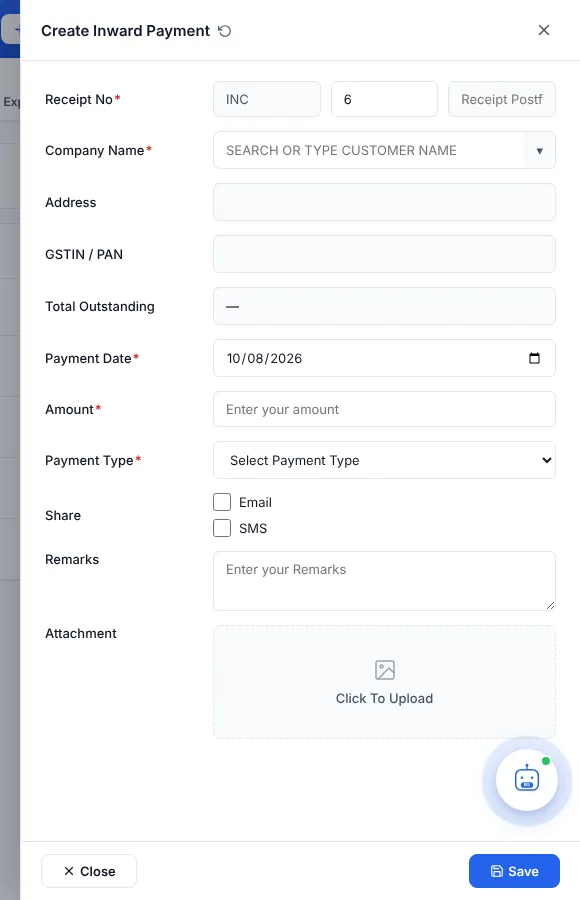
Record a payment
- Click + Add New. The Create Inward Payment panel opens on the right.
- Check the Receipt No (prefix INC, a running number and an optional postfix).
- Choose the Company Name (customer). The address, GSTIN and Total Outstanding fill in so you can see what they owe.
- Enter the Payment Date, Amount and Payment Type: CASH, BANK, UPI, CHEQUE, CARD or ONLINE.
- Add Remarks such as the UTR or cheque number.
- Click Save.
Payments made on invoices are added automatically. When you record money on a sale invoice, a matching receipt appears here with the remark Received against invoice … — don’t enter it again. To mark a particular invoice as paid, use Record a payment against an invoice.
The list
Columns: Receipt No, Company Name, Receipt Date, Receipt Type (payment mode), Remarks, Amount and Advance Pay. on Receipt. Click Search to filter by company, staff, dates, payment type, remarks, receipt number or amount. Summary shows the number of receipts and the total, broken down by payment type.
Print, edit or delete a receipt
- Use the row’s View / Print to open the receipt voucher, print it or share it.
- Use Edit to change it, or delete it from the row menu. Tick several receipts to delete them together; deleted receipts can be restored from Trash.
Where it shows: receipts appear in the customer’s ledger, the Cashbook, the Day Book and the Inward Payment report.