












How can we help?
Search, edit and delete customers and vendors
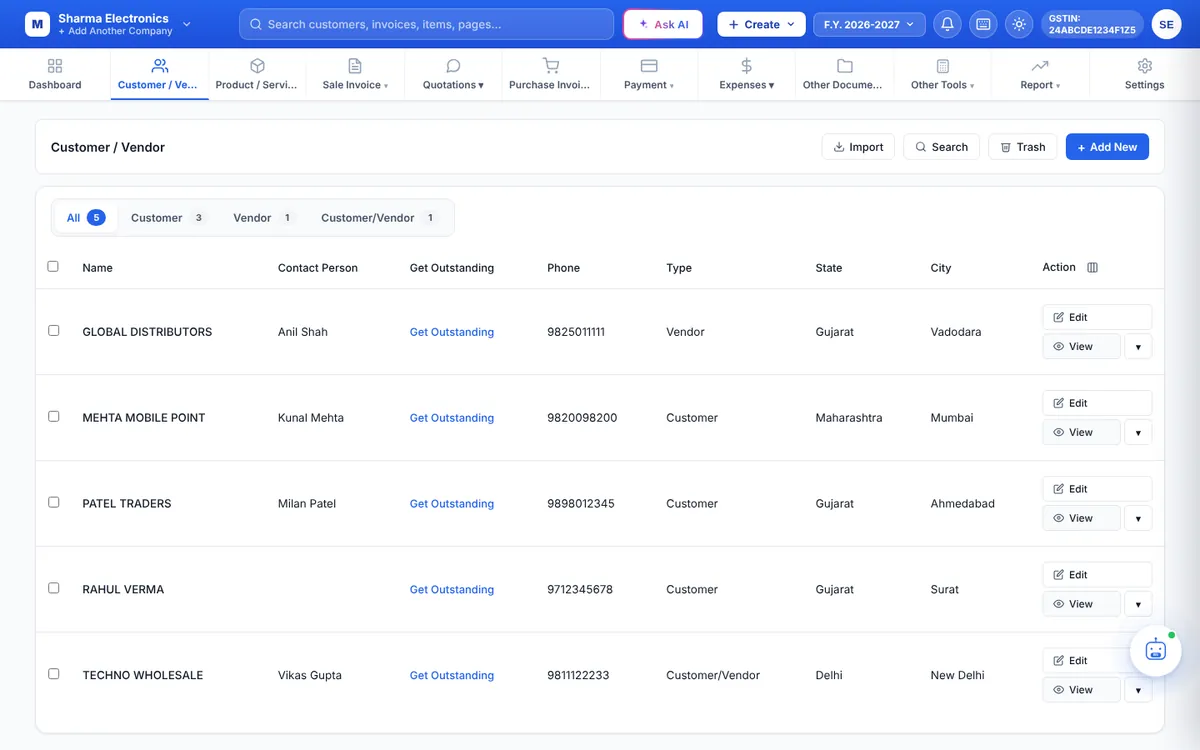
The Customer / Vendor page lists all your parties. Use the tabs, search panel and filters to find anyone in seconds.
Where to find it: Customer / Vendor ▾ → Customer / Vendor (keyboard Alt + C)
Find a party
- Tabs: All, Customer, Vendor and Customer/Vendor, each with a count.
- Search: click Search to open the search panel. Filter by Name, GSTIN, Contact Person, License No., Custom Field 1 and 2, Group and Staff Name, then click Search. Show All clears the filters.
- Advance Filter: choose a field (Name, GSTIN, Phone, Email, City, State, Group…), an operator (contains, equals, starts with, ends with) and a value. Click + to add more conditions.
- Columns: click the column icon next to Action to show or hide columns such as Contact Person, Phone, Type, State and City.
Actions on a party
- View opens a side panel with the party’s details.
- Edit opens the same form you used to add the party. Click Save changes when done.
- Get Outstanding or ▾ → Ledger opens the party’s ledger with every bill and payment. View a party’s outstanding
- ▾ → Delete moves the party to the Trash.
Delete several parties
Tick the boxes at the start of the rows (or the box in the header to select the whole page), then click Delete Selected. Clear Selection unticks everything.
Restore from the Trash
Click Trash to see deleted parties. From there you can restore them, or delete them permanently.
Tip: Instead of deleting a party that has old bills, edit it and untick Enable. It disappears from new documents but your history stays complete.