












E-Way Bills
An e-way bill is needed when you move goods worth more than ₹50,000 (some states set different limits). Billing Saathi prepares the e-way bill details from your invoice, gives you a JSON file for the government portal, and keeps each e-way bill number (EBN), vehicle and validity with the invoice.
Where to find it: Report ▾ → E-Way Bill. If you don’t see it in the menu, e-way bills are switched off for your account — contact support.
First-time setup
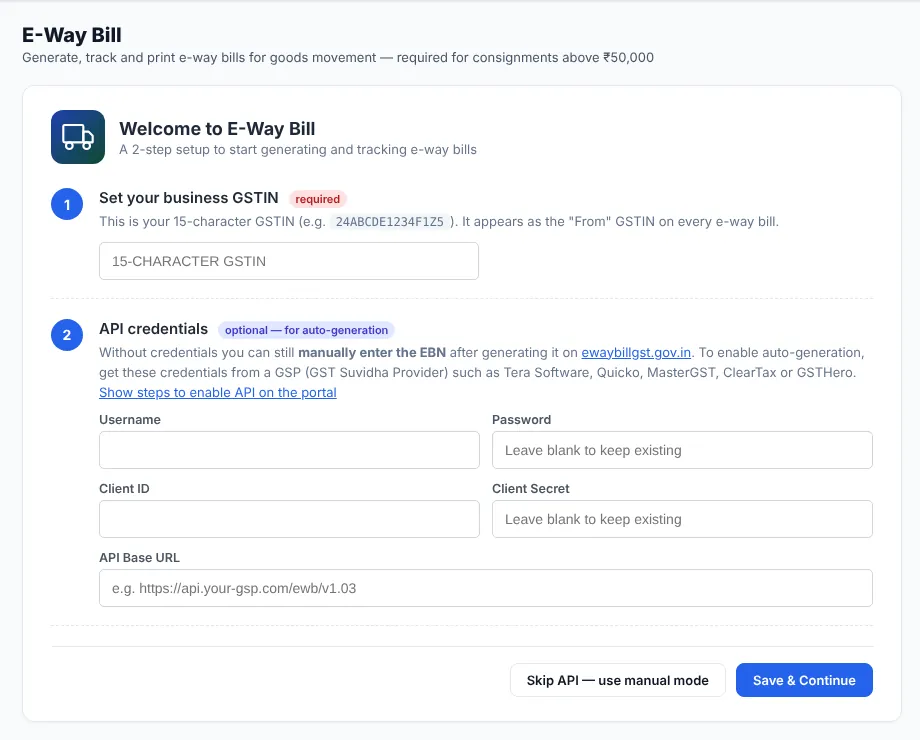
- Set your business GSTIN (required): your 15-character GSTIN. It is printed as the From GSTIN on every e-way bill.
- API credentials (optional): username, password, client ID, client secret and API base URL from a GST Suvidha Provider (GSP). Click Show steps to enable API on the portal for help.
- Click Save & Continue, or Skip API — use manual mode to work without API credentials.
You can change these later with the Settings button on the E-Way Bill page.
E-way bills are generated on the government portal, ewaybillgst.gov.in, and their number is then recorded in Billing Saathi. API credentials you save are kept for automatic generation.
Prepare an e-way bill from an invoice
- When you create the invoice, fill the delivery and transport details: transporter, vehicle number, transport document and distance.
- Open Sale Invoice ▾ → All Sale Invoices, click the invoice’s ▾ and choose Generate E-way Bill.
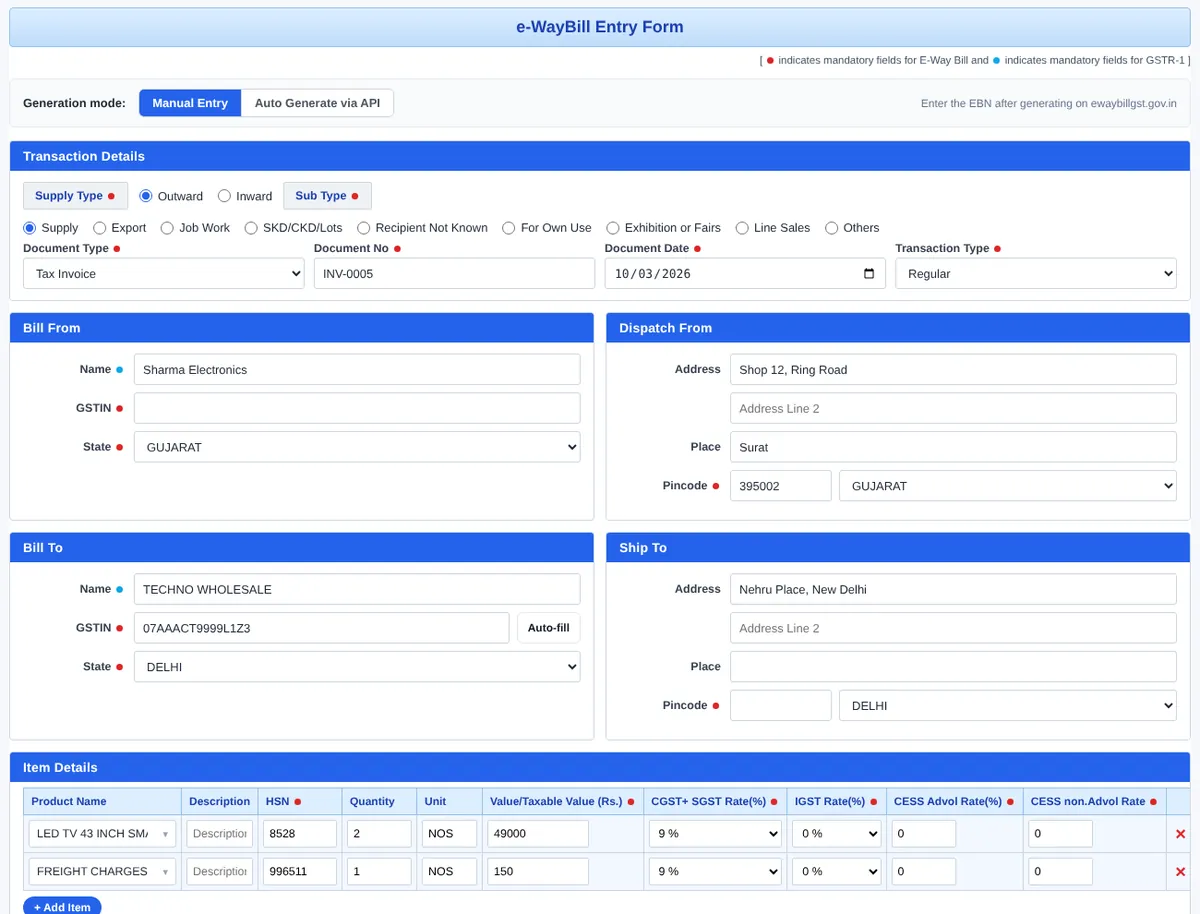
- The e-WayBill Entry Form opens, filled from the invoice: your details, the customer, the items with HSN and tax, and the transport details. If the invoice already has an e-way bill, that one opens instead.
- Check the form and click Submit. It is saved with the status Pending until you add the e-way bill number.
Generate it on the portal
- Upload a JSON file: in the invoice’s ▾ menu choose Download E-way Bill JSON. On ewaybillgst.gov.in open e-Waybill → Generate Bulk and upload the file.
- Or type it in: fill the portal’s form using the e-WayBill Entry Form as your reference — the sections are the same.
Record the e-way bill number
- On the E-Way Bill page, click Edit on the e-way bill (or open it again from the invoice).
- Under E-Way Bill Number — manual entry, enter the EBN, the EBN Date and Valid Until from the portal.
- Click Submit. The status becomes Active and the e-way bill opens in the official format, ready to print.
The printed invoice then shows a small box at the top right with the e-way bill number, its validity and the vehicle number.
The e-WayBill Entry Form
| Transaction Details | Supply Type (Outward / Inward), Sub Type (Supply, Export, Job Work, SKD/CKD/Lots, Recipient Not Known, For Own Use, Exhibition or Fairs, Line Sales, Others), Document Type, Document No and Date, Transaction Type. |
| Bill From / Dispatch From | Your name, GSTIN and state, and the address the goods leave from. |
| Bill To / Ship To | The customer’s name, GSTIN and state, and the delivery address. |
| Item Details | Product, description, HSN, quantity, unit, taxable value, CGST + SGST rate or IGST rate and cess. The totals are worked out below the table. Click + Add Item for more lines. |
| Transportation Details | Transporter name and ID, and the approximate distance in km. |
| PART-B | Mode (Road, Rail, Air, Ship), vehicle type (Regular or Over Dimensional Cargo), vehicle number, and transporter document number and date. |
To save, the form needs a document number, a valid 15-character GSTIN in both Bill From and Bill To, and at least one item. For a buyer without a GSTIN, create the e-way bill directly on the portal.
To make an e-way bill that is not linked to an invoice, click + New E-Way Bill on the E-Way Bill page.
Find and print e-way bills
- The cards at the top show Total E-Way Bills, Generated Today, Pending, Failed and Cancelled.
- Filter by status, or search by EBN, document number, customer name or GSTIN.
- Each row has Edit, View (the official e-way bill layout), PDF and Print. Use ▾ → Delete to remove one.
Tips: Save each customer’s Distance for E-Way Bill in their profile so it fills in automatically. If an e-way bill has to be cancelled, cancel it on the portal (allowed within 24 hours of generation). Temporary vehicle numbers start with TM.