












How can we help?
Create and send a quotation
A quotation (estimate) tells a customer what you will charge before they place the order. It looks like an invoice but does not affect your stock, sales or GST.
Where to find it: Quotations ▾ → Quotations → + Add New, or + Create → Quotation (keyboard Alt + Shift + Q)
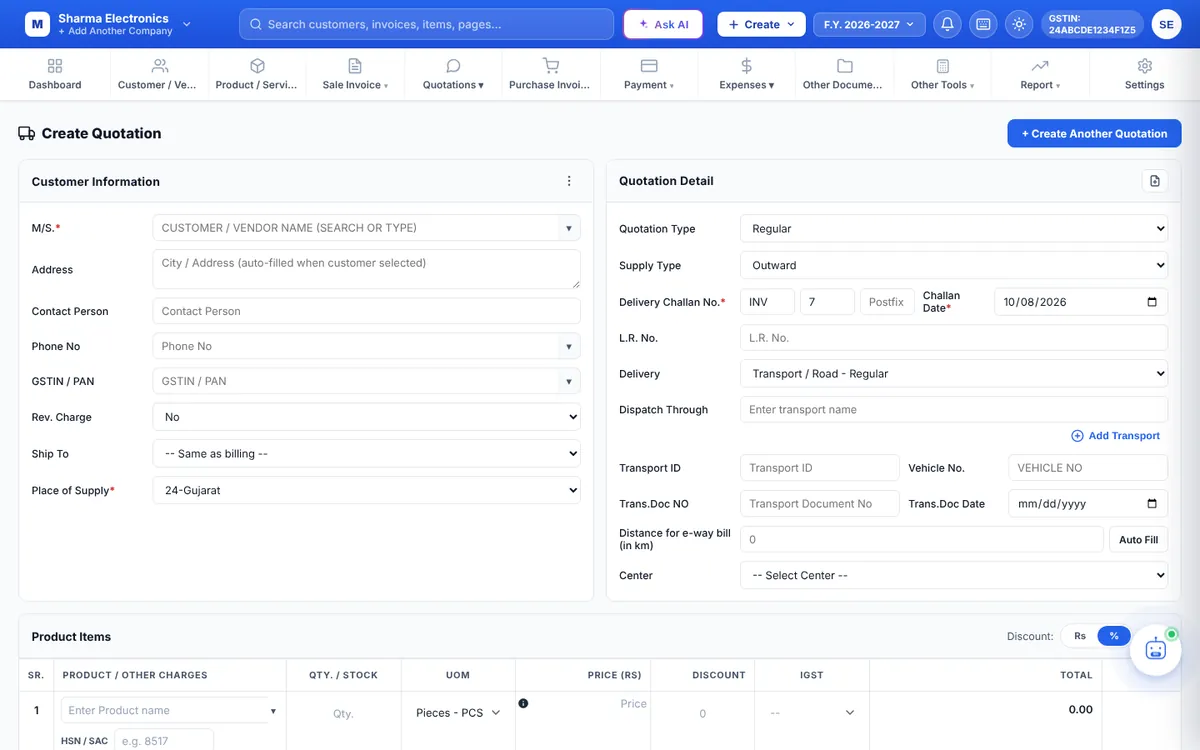
Steps
- Customer: pick or type the customer in M/S. and check the Place of Supply.
- Quotation Detail: choose the Quotation Type (Regular, Bill of Supply, or SEZ / Export with or without IGST) and check the number and date. Delivery and transport details are optional.
- Items: add products or services with quantity, price and discount, exactly as on an invoice. Items, discounts and charges
- Terms: add your terms (validity, delivery time, payment terms) in Terms & Condition / Additional Note.
- Click Save & Print to save and print, or Save.
Send it to the customer
- In the quotation list click ▾ → Print / PDF to print or save a PDF.
- Share the PDF on WhatsApp or by email. Share documents on WhatsApp
- Change the status to Sent so you know it went out. Quotation status
Find quotations
The list shows Quote No, Date, Customer, Valid Until, Status and Total. Use Search to filter by company, product, product group, dates, staff, quotation number, total, L.R. No., item note, remarks, GSTIN, quotation type or shipping address, and Summary for totals.
Tip: A quotation doesn’t change stock or show in GST reports. Only when you convert it into an invoice do stock and sales change.