












How can we help?
Add a customer or vendor
Customers are the parties you sell to and vendors are the suppliers you buy from. One party can be both. Saved parties fill in automatically on invoices, so you never type the same address twice.
Where to find it: Customer / Vendor ▾ → Customer / Vendor → + Add New (or + Create → New Customer / Vendor)
Steps
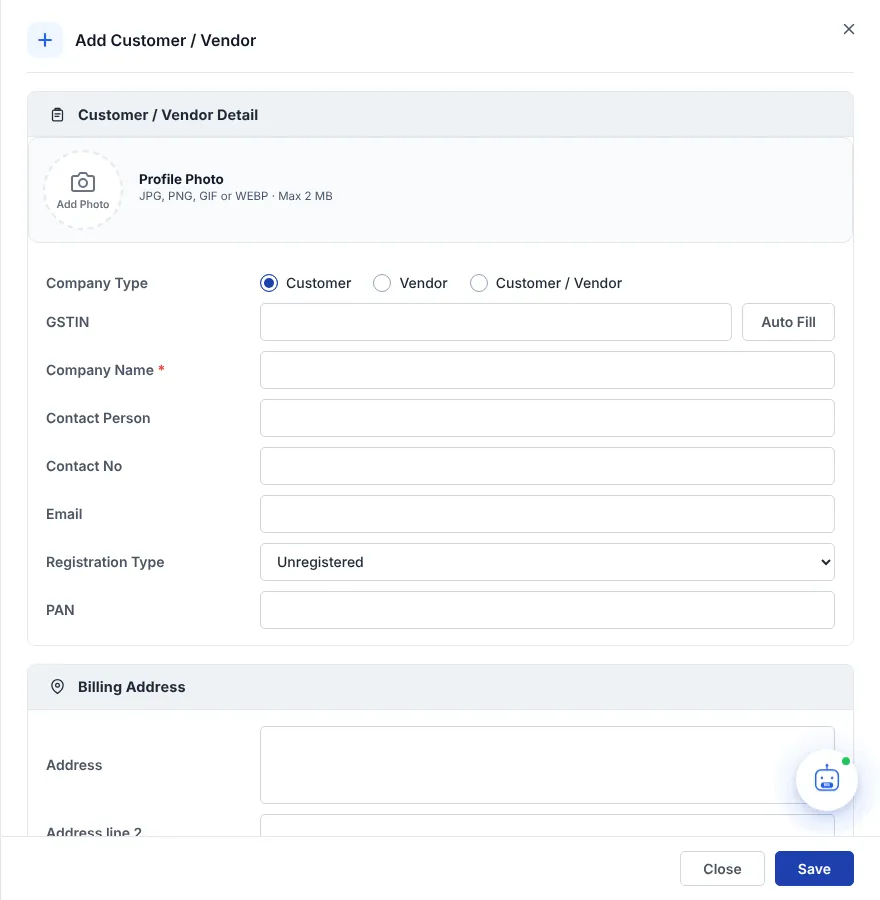
- Click + Add New on the Customer / Vendor page.
- Choose the Company Type: Customer, Vendor or Customer / Vendor (both).
- If the party is GST registered, type the 15-character GSTIN and click Auto Fill. The state and PAN (and, where available, the name and address) are filled for you.
- Enter the Company Name (required). Names are saved in capital letters.
- Add the contact person, contact number, email, Registration Type and PAN.
- Fill the Billing Address. City, Country and State are required — the state decides whether IGST or CGST + SGST applies on bills.
- If goods go to a different place, fill the Shipping Address or click + Copy from Billing. Leave it blank to use the billing address.
- Optionally pick a Group, an Opening Balance and the Additional Details (see below).
- Click Save.
Field guide
| Profile Photo | Optional picture or logo of the party (JPG, PNG, GIF or WEBP, up to 2 MB). |
| Registration Type | Unregistered, Registered (Regular), Composition, Consumer, Overseas, SEZ or Deemed Export. This is used for GST reports such as GSTR-1. |
| Distance for E-Way Bill (in Km) | Distance from your place of business to this party. It is used when you prepare e-way bills. |
| Opening Balance | Any amount already due before you started using Billing Saathi. Enter the amount and choose Credit or Debit — the line under the box tells you in plain words whether you receive this amount from the party or you pay it. Check that line before saving. |
| Credit Limit | The highest amount you allow this customer to owe you. |
| Due Days | Normal payment terms in days (for example 30). Used for due dates and overdue tracking. |
| Fax No, Website, Note | Extra information for your reference. |
| Enable | When ticked the party appears in all documents. Untick to hide a party you no longer deal with, without deleting it. |
Add a customer while billing
You don’t have to add customers in advance. On any invoice, type a new name in M/S., fill the details and save the bill — the customer is saved for next time. You can also use the Quick add button on the Customer Information card.
Tip: Group your parties (for example Wholesale, Retail, Online) so you can filter reports by group. Customer / Vendor Groups