












How can we help?
Salary: add and manage employees
The Salary section manages your staff’s attendance, monthly payroll and advances. Start by adding your employees with their pay details.
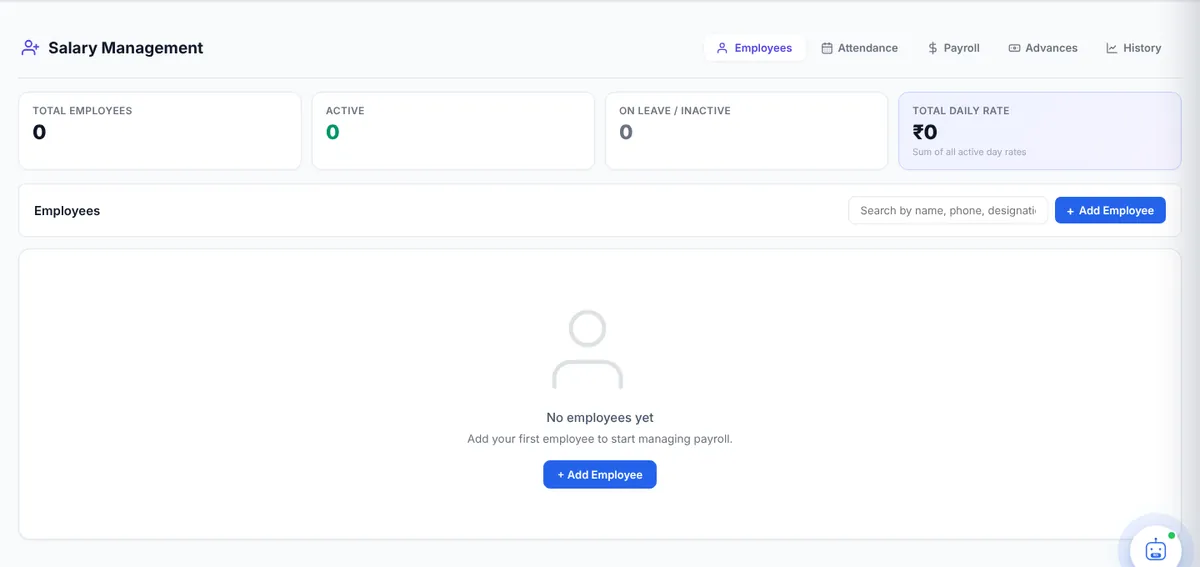
Where to find it: Expenses ▾ → Salary → Employees tab (keyboard Alt + S)
Add an employee
- Click + Add Employee.
- Enter the Name (required), Designation, Phone, email, Join date and Status (Active or Inactive).
- Under Pay Structure choose the Shift type — Day only, Night only or Rotating (can do both).
- Choose the Pay type: Annual, Monthly (fixed salary), Weekly, Daily (per shift), Hourly, or Custom (you type the gross pay each month).
- Enter the Day rate and Night rate in ₹ (leave the night rate 0 if there is no night duty; a quick button sets it from the day rate plus a percentage) and the Overtime rate per hour.
- Under Work Schedule tick the Weekly off days and enter the Paid leaves / month.
- Add any notes and click Save.
The Employees tab
Cards at the top show total employees, active employees, employees on leave or inactive, and the total daily rate of all active staff. Search by name, phone or designation, and edit an employee to change their pay or mark them inactive when they leave.